









The Perfect Desk Setup for Posture: Corrector, Chair, and Keyboard Tricks

The Perfect Desk Setup for Posture: Corrector, Chair, and Keyboard Tricks
Good posture at your desk isn't a one-time adjustment; it's a system. It's about aligning your body so that the everyday motions of typing, scrolling, and writing don't grind you into fatigue, stiffness, or longer-term strain. The goal of a perfect desk setup is simple in theory but nuanced in practice: a chair that supports the natural curves of your spine, a desk height that preserves neutral joints, a monitor and keyboard arrangement that reduce reaching and bending, and a few smart habits that keep you from drifting into bad posture as you work. In this guide, we'll break down each piece of the equation-the corrector, the chair, and keyboard tricks-and show you how to combine them into a posture-friendly workstation you can actually live with.
The science behind good posture at a desk
To understand how to set up a desk that supports posture, it helps to know the basic mechanics. When you sit, your spine should maintain its natural curves: a gentle inward curve in the lower back (lordosis), a neutral mid-back, and a slightly extended neck. Slouching often flattens those curves and shifts load to the discs, muscles, and tendons in the neck and lower back. The most reliable way to prevent this is to create a workstation that keeps your head over your shoulders, your shoulders over your hips, and your elbows near your sides at roughly a 90-degree angle.
Two easy rules shape most ergonomic setups: first, keep your eyes roughly level with the top third of your monitor so you don't tilt your head up or down; second, position the keyboard so your wrists float above the desk with a comfortable, neutral angle. These small alignment cues reduce the risk of neck tension, upper back strain, carpal tunnel-like discomfort, and repetitive strain injuries over time. The best posture is one that you can sustain, and sustainable posture is usually the result of gentle, incremental improvements rather than a single dramatic adjustment.
The Corrector: choosing and using posture aids
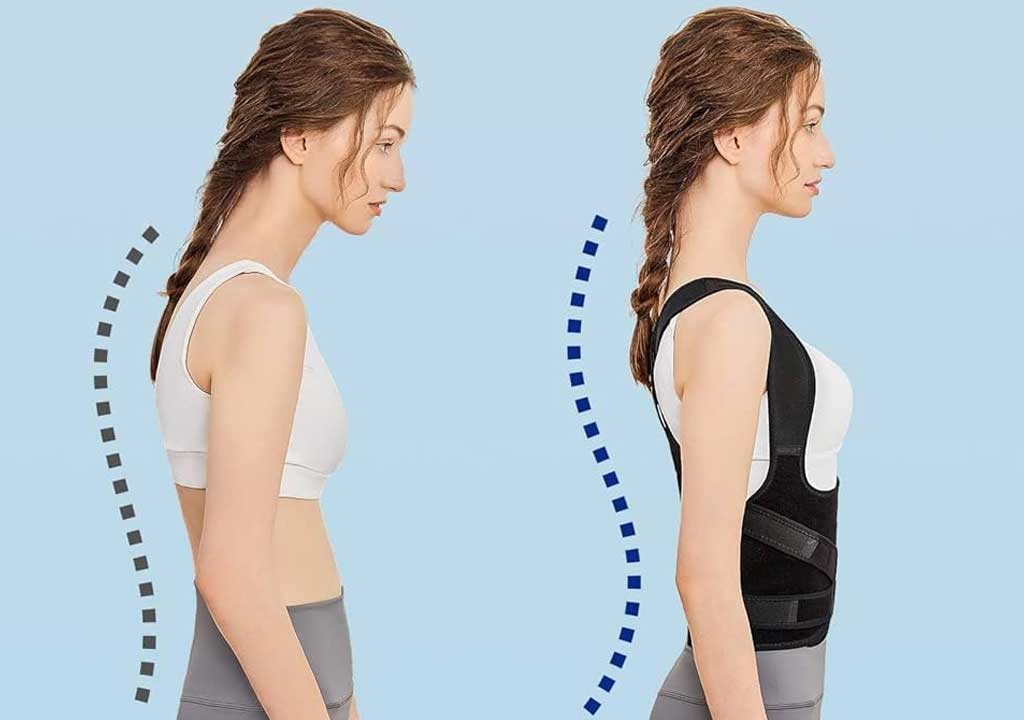
Posture correctors come in a spectrum-from passive devices like back braces and posture belts to wearable reminders that buzz or vibrate when you deviate from a neutral position. Some people find a brief reminder is just what they need to re-align themselves; others rely on a more passive approach that helps engrain better habits over days and weeks. Here's how to think about correctors and how to use them safely.
Types you'll encounter:
- Posture braces or bands: soft braces worn across the upper back or shoulders. They physically limit slouching by providing gentle resistance. They can be effective for short durations but may feel restrictive if you wear them too long or during precision tasks. For many people, they're a catalyst, not a daily routine.
- Wearable reminders and sensors: devices that clip to clothing or are worn as a small patch, wristband, or pendant. They monitor your posture and/or movement and provide nudges through vibration, sound, or a gentle alert. These are helpful for building awareness without constraining movement.
- Software apps and on-screen cues: reminders that prompt you to check your posture, take a break, or adjust your screen height. These work well when paired with other tools because they're unobtrusive and easy to use in parallel with work tasks.
Pro tip: use correctors as a temporary scaffold rather than a permanent crutch. The aim is to train your muscles and your brain to default to a better position, not to rely on a device forever. Start with short sessions-15-20 minutes of neutral posture at a time-and gradually extend as you become more comfortable. If a corrector causes discomfort, numbness, or constricted breathing, discontinue use and consult a clinician.
What to look for when selecting a corrector:
- Fit and comfort: adjustable straps, breathable materials, and a design that doesn't dig into your armpits or ribcage.
- Range of use: lightweight devices for daily wear, plus stronger options for longer sessions if needed.
- Versatility: a product that works with a typical desk setup and doesn't clash with clothing or other accessories.
- Safety: avoid designs that excessively restrict movement or restrict breathing; there should be freedom to adjust posture without pain.
How to integrate a corrector into your routine:
- Start with 10-15 minutes per work period, then reassess. Increase gradually as you feel more comfortable.
- Combine with micro-adjustments: use the device as a reminder to set yourself in a neutral posture, then keep that alignment after the reminder fades.
- Pair with other ergonomic changes: a better chair and keyboard setup will amplify the positive effects of a corrector.
- Take notes on what works: tracking when you used the corrector and how you felt afterward can guide future adjustments.
Remember, a posture corrector is not a substitute for a well-designed workstation. It's a prompt to reset, not a permanent seating solution.
The chair: the core of ergonomic seating
A good chair is the cornerstone of posture-friendly work. A chair that fits you promotes the natural curves of your spine, supports your lower back, and allows your feet to rest flat on the floor or a footrest. Here are the most important features to look for and how to optimize them.
Key chair features to prioritize:
- Lumbar support: an adjustable lumbar curve that fits your lower back's natural shape. If the chair does not have built-in lumbar support, consider an adjustable lumbar cushion or a chair with a reputably contoured backrest.
- Seat depth: you should be able to sit with your back against the backrest while leaving about 2-3 inches (5-7.5 cm) of space between the edge of the seat and the back of your knees. This space helps circulation and reduces pressure behind the knees.
- Seat height: your feet should rest flat on the floor or on a footrest, with your knees at roughly a 90-degree angle, or slightly more open (up to about 110 degrees) to encourage healthy hip angle.
- Backrest height and angle: a backrest that supports the upper to mid back, with an adjustable angle that lets you lean back slightly without losing neck support. Some people prefer a slightly reclined angle (100-110 degrees) for relief during long periods of typing.
- Armrests: adjustable in height and width so your forearms can rest comfortably while keeping elbows near your body. Armrests should not push your shoulders upward or cause you to hunch forward.
- Material and breathability: a chair that breathes well helps you stay comfortable during long work sessions, reducing tension caused by heat and moisture buildup.
How to set your chair for a neutral posture:
- Adjust the seat height so your feet lie flat and your knees are roughly level with your hips or slightly lower. A small cushion under the feet can help with longer legs if needed.
- Position the lumbar support to fill the natural curve of your lower back. If the chair lacks explicit lumbar support, use a cushion or a small rolled towel behind the small of your back while you sit.
- Set the backrest so you can lean back comfortably without lifting your shoulders. A light recline reduces spinal disc pressure and can feel more restorative during longer sessions.
- Align your arms so your elbows rest by your sides at about a 90-degree angle. If your chair's arms are not adjustable, consider a separate adjustable desk pad that brings the keyboard to a more ergonomic level without straining your wrists.
Feet and posture during work afternoons:
- Use a footrest if your thighs are short or if your knees ride high above your hips. A footrest helps maintain a 90-degree knee angle and reduces thigh pressure.
- Avoid crossing your legs for long periods. Crossed legs can constrain blood flow and lead to hip asymmetry.
- Take micro-breaks to stretch and reset. A few minutes every 30-45 minutes can dramatically improve comfort and concentration over the day.
Chair maintenance and longevity tips: invest in a chair that fits your body type and daily tasks. If you work from home, a mid-range ergonomic chair can deliver most of the benefits you need without breaking the bank. If you sit for extended periods, consider a chair with a stable base, smooth wheels for mobility, and durable upholstery that will withstand daily use.
Desk height, monitor placement, and the workstation layout
Beyond the chair, the rest of your desk infrastructure matters just as much. An ergonomic desk setup reduces the need to heroically hunch or twist to reach your keyboard, mouse, or monitor. Here's how to arrange your space for comfort and efficiency.
Desk height and reach:
- Set the desk height so that your forearms rest parallel to the floor when typing. This often requires a desk height of roughly 28-30 inches (71-76 cm) for an average adult, but personal height differences will shift this range. Use a standing desk or a sit-stand converter if you need flexibility.
- Keep the keyboard and mouse within easy reach without stretching. Your elbows should stay near your sides, and your wrists should maintain a neutral alignment rather than bending upward, downward, or to the sides.
Monitor setup for healthy neck alignment:
- Position the monitor so the top line of text is at or slightly below eye level. This reduces the tendency to tilt your head up or down, which over time can create neck tension.
- Place the monitor about an arm's length away (roughly 20-30 inches, or 50-75 cm) from your eyes. If you work with multiple monitors, align the primary screen directly in front of you, with secondary screens at a similar height and angle to minimize excessive head turning.
- If you use a laptop, consider a separate keyboard and monitor. Laptops often force a lower eye level, which tempts users to hunch. An external keyboard and external monitor can restore proper alignment.
Keyboard and mouse placement:
- Keep the keyboard directly in front of you and the mouse within easy reach, close enough so you don't rely on shoulder or arm reach to move it. A comfortable setup uses a single line of reach rather than a diagonal reach across the desk.
- Test slight tilt of the keyboard. Some people type more comfortably with the keyboard flat; others prefer a slight negative tilt (the front edge a little higher than the back). If you do use a negative tilt, ensure your wrists stay in a neutral position.
- Use a mouse with a natural, comfortable grip and try to keep your forearm supported on the desk or a padded arm depending on your chair design. If you experience wrist strain, consider a vertical mouse or an ergonomic mouse with additional support.
Lighting and desk organization:
- A well-lit workspace reduces eye strain and the urge to lean forward to see details. Natural light is ideal, but an adjustable desk lamp with indirect lighting can also help.
- Organize cables, documents, and frequently used tools within easy reach to minimize repetitive twisting or bending.
- Keep frequently used items at or slightly above elbow level to maintain neutral forearm posture during use.
Chair and desk synergy:
- If your arms feel too high or too low relative to the desk, adjust the chair height or the desk height to bring your elbows to the correct 90-degree alignment. An adjustable chair paired with an adjustable desk gives you the most flexibility for maintaining a neutral posture across different tasks.
- When you switch tasks (for example, from typing to writing by hand), ensure you maintain an awareness of your posture and adjust as needed so your spine remains supported and your shoulders relax away from your ears.
Keyboard tricks: optimizing typing posture and efficiency
The keyboard is more than a tool for input; it is a primary influence on your wrist, forearm, and shoulder posture. With the right setup and technique, you can reduce strain and keep your hands comfortable for longer work sessions.
Choosing the right keyboard for posture:
- Ergonomic keyboards: Split keyboards, tented or curved keyboards, and low-profile models can promote a neutral wrist position and reduce ulnar deviation (the tilt toward the little finger side). If you're new to split keyboards, give yourself a few weeks to adapt, as the layout can alter finger movement patterns.
- Mechanical vs. membrane: Mechanical keyboards often offer better tactile feedback and reduced keystroke effort, but the choice depends on your preference for typing feel, noise level, and typing speed. A comfortable keystroke with a light touch reduces muscle strain.
- Key layout and spacing: A layout that makes sense to you-whether standard or a split design-will minimize awkward finger angles. The ideal keyboard is one that your fingers can reach without excessive wrist movement.
Wrist posture and neutral alignment:
- Keep wrists in a neutral position, not cocked up or down. A small tilt is acceptable if it feels comfortable, but avoid bending your wrists sideways or pressing the keys with hard contact. Consider a soft, supportive wrist rest if you find your wrists resting heavily on the desk edge.
- Forearms should be supported, with elbows tucked in at your sides. Avoid resting your entire forearm on a hard surface while typing; a gentle forearm support can help you maintain neutral alignment without creating pressure points.
- Mouse position should be on the same horizontal plane as the keyboard to prevent reaching or twisting. Try to keep your mouse within easy reach so you don't need to extend or twist your shoulder to access it.
Typing technique that protects joints:
- Type with a light touch. Heavy keystrokes increase muscle tension in the fingers, hands, and forearms. A softer keystroke reduces fatigue and improves endurance during long sessions.
- Use all fingers for input rather than relying on the index finger for everything. A balanced approach distributes workload and reduces repetitive strain on any single finger.
- Take micro-chairs exercises: for example, alternate between typing and simple hand stretches every 20-30 minutes to maintain circulation and loosen tight joints.
Mouse tips that complement keyboard posture:
- Keep the mouse close to the keyboard to minimize arm movement. If you find yourself reaching, consider a smaller mouse or an alternate arrangement to preserve shoulder posture.
- Use a vertical or ergonomic mouse if your wrist or forearm tends to twist to reach the traditional mouse. A vertical design can reduce pronation and promote a more natural wrist alignment for some users.
Short-term exercise you can do at your desk to support keyboard work:
- Wrist circles and gentle stretches to release tension after long typing sessions.
- Shoulder shrugs and rolls to reduce upper back and neck stiffness that can accompany heavy keyboard usage.
- Seated chest openers, such as clasping hands behind your back and gently lifting the arms, to counteract forward shoulder posture that can develop while typing.
The full routine: implementing posture changes over a workday
Setting up equipment is only part of the solution; building a daily routine that reinforces good posture is the surest way to sustain it. Here's a practical routine you can adapt to your day so posture becomes a habit rather than a reminder.
Morning setup (5-10 minutes):
- Check your chair height, monitor level, and desk height. Make sure your eyes align with the top of the screen and your elbows form a near-90-degree angle.
- Place your keyboard and mouse within easy reach without reaching. Confirm your wrists sit in a neutral position when your hands hover over the keyboard.
- If you use a corrector, set it to a 10-15 minute reminder interval for the first few days, gradually increasing as you adapt.
Working blocks (50-75 minutes each):
- During the block, maintain a neutral spine, relaxed shoulders, and even breathing. If you notice yourself slouching, reset with a quick posture check and adjust as needed.
- Take a short micro-break at the halfway point. Stand up, stretch, move your neck, shoulders, wrists, and hips. A simple two-minute break is enough to reset the day's posture.
- If your job requires long typing sessions, alternate between keyboard-centric tasks and reading or planning to reduce the risk of repetitive strain from continuous keystrokes.
Afternoon reset (10-15 minutes):
- Re-evaluate chair and desk position and adjust if you've moved during the day. Ensure your monitor height remains comfortable and your feet are well supported.
- Finish with a few minutes of stretching that target the back, hips, neck, and wrists. A short sequence of mobility work can prevent stiffness from building up.
Long-term maintenance:
- Review your setup every 3-6 months. Small changes in your body or work style can necessitate adjustments in chair height, monitor placement, or keyboard layout.
- Track symptoms. If you experience persistent pain, consider seeing an ergonomic professional, a physical therapist, or a clinician who can provide targeted guidance for your unique needs.
Common pitfalls and how to fix them
Even the best setup can be undermined by habits built over years. Here are frequent missteps and practical fixes to keep you on track.
- Slouching at the desk: Use a backrest with proper lumbar support and ensure your hips are pushed toward the back of the chair. A small cushion or rolled towel can help you maintain the natural spine curve.
- Over-tilting your head toward the screen: Raise the monitor or add a monitor stand so the top line sits at eye level. If you must look downward, do it with your eyes, not your head, by lowering the screen slightly.
- Excess wrist bending during typing: Adjust keyboard height and consider a split or tented ergonomic keyboard. A soft wrist rest can help, but it should not elevate the wrists excessively.
- Arm position too high or too low: Re-check chair height and armrest positioning. If the chair's arms aren't adjustable, use a small desk pad or a knee rest to adjust the stance more toward neutral.
- Prolonged foot inactivity: If your feet don't rest flat, use a footrest. Good circulation matters for maintaining energy and reducing fatigue.
Budget-friendly setup vs. premium ergonomics
Ergonomic improvements don't have to break the bank. You can build a comfortable, posture-supportive workstation with thoughtful, affordable choices, plus a few upgrades as your budget allows.
Budget-friendly ideas:
- Choose a height-adjustable chair cover with built-in lumbar support or a simple cushion that supports your lower back.
- Use a monitor riser or inexpensive stand to place the screen at eye level instead of forcing you to tilt your head downward.
- Opt for a keyboard tray or a compact, affordable ergonomic keyboard that promotes a natural wrist angle.
- Keep a basic sit-stand desk converter or a simple desk block that can be adjusted for occasional standing without committing to a full-height desk.
Premium upgrades worth considering (when your budget allows):
- A quality ergonomic chair with adjustable lumbar support, seat depth, backrest tilt, and tall, supportive backrest.
- A split or tented ergonomic keyboard and a vertical mouse for advanced wrist alignment and reduced pronation.
- A dedicated monitor arm that allows precise height, tilt, and distance adjustments without shifting the entire desk.
- A high-contrast, flicker-free monitor and a blue light reducing setup for long days in front of the screen.
Regardless of budget, the most important principle is to align the pieces so they support your body in a neutral, comfortable posture during work. Small changes, repeated consistently over time, deliver the strongest gains.
A practical setup example: how to apply the principles
Here's a concrete, step-by-step example of a well-balanced desk arrangement that many people find workable. This setup aims for adjustability, comfort, and simplicity, while keeping the core posture principles in mind.
- Chair: A chair with adjustable lumbar support, seat depth that leaves a 2-3 inch gap behind the knees, and adjustable armrests. Set the height so your feet rest flat on the floor or a footrest, with your thighs parallel to the floor.
- Desk and monitor: A desk at a height that allows your forearms to be parallel to the floor when typing. The monitor's top edge sits at or slightly below eye level and about 20-30 inches away. If you have two monitors, align them so your primary screen is directly in front of you and the secondary screen can be viewed with only minor head movement.
- Keyboard and mouse: An ergonomic keyboard with a neutral wrist position. The keyboard should be in a straight line with the mouse, both at a height that keeps your elbows near your sides and your wrists straight. If using a split keyboard, give yourself a couple of weeks to adapt.
- Posture corrector (if you choose to use one): Use briefly, as a reminder to reset your posture. Avoid becoming dependent on the device; the goal is to train your body toward neutral alignment, not to rely on the device.
- Lighting and accessories: A well-lit space, a simple document stand for reference materials, and cable management to reduce clutter and the risk of reaching and twisting.
With this setup, you'll be positioned to work comfortably across a typical eight-hour day. The key is to start with these guidelines and tailor the details to your body, work style, and tasks. It's better to implement gradual changes you can sustain than to chase one perfect configuration and abandon it after a few days.
Q: How quickly will I notice improvements in posture after adjusting my desk?
A: Many people notice a reduction in neck or shoulder tension within a few days of making minor adjustments. For more substantial changes, such as reducing chronic lower back fatigue, it can take weeks of consistent practice and habit formation.
Q: Is it necessary to have a standing desk for better posture?
A: Standing desks can be a valuable addition because they provide an opportunity to change posture and reduce prolonged sitting. The best approach is to alternate between sitting and standing throughout the day, while maintaining the core posture principles: neutral alignment, minimal reaching, and comfortable eye level for the monitors.
Q: Are posture correctors safe for everyone?
A: For most healthy adults, posture correctors used briefly and as part of an overall ergonomic plan can be safe. People with certain medical conditions, such as scoliosis, shoulder injuries, or respiratory issues, should consult a healthcare professional before using a brace or device for extended periods.
Q: What should I do if I experience pain when adjusting my desk setup?
A: If you feel sharp or persistent pain, stop the adjustment and consult a healthcare professional or an ergonomics specialist. Pain can indicate an underlying issue that requires careful assessment and tailored recommendations.
Posture-friendly design isn't about a single perfect gadget or a mysterious "right" arrangement. It's about building a workstation that allows your body to do its job with the least amount of strain-every day, again and again. Start with a solid chair and a monitor at eye level, then arrange the keyboard and mouse to keep your wrists neutral and your forearms supported. Consider a posture corrector as a temporary aid to reinforce better habits, not as a crutch. And finally, cultivate a routine that includes regular breaks, micro-stretches, and small, repeatable decisions-like adjusting your seat height or re-checking your posture every 30 minutes-that cumulatively add up to better long-term comfort and fewer aches.
If you'd like, you can share details about your current setup or constraints (space, budget, any existing pain points), and I can tailor a step-by-step plan to help you implement these ideas in a way that fits your daily workflow. The perfect desk setup isn't a one-size-fits-all solution; it's a personalized system that evolves with your body and your work.
LIKED THIS ARTICLE? SHARE IT: